Heim Nachricht Sega Game Gear-Spiele jetzt auf Steam Deck spielbar

Sega Game Gear-Spiele jetzt auf Steam Deck spielbar

Autor : Sadie Aktualisieren : Jan 20,2025

Entfesseln Sie Ihren inneren Gamer: Spielen Sie Game Gear-Klassiker auf Ihrem Steam-Deck

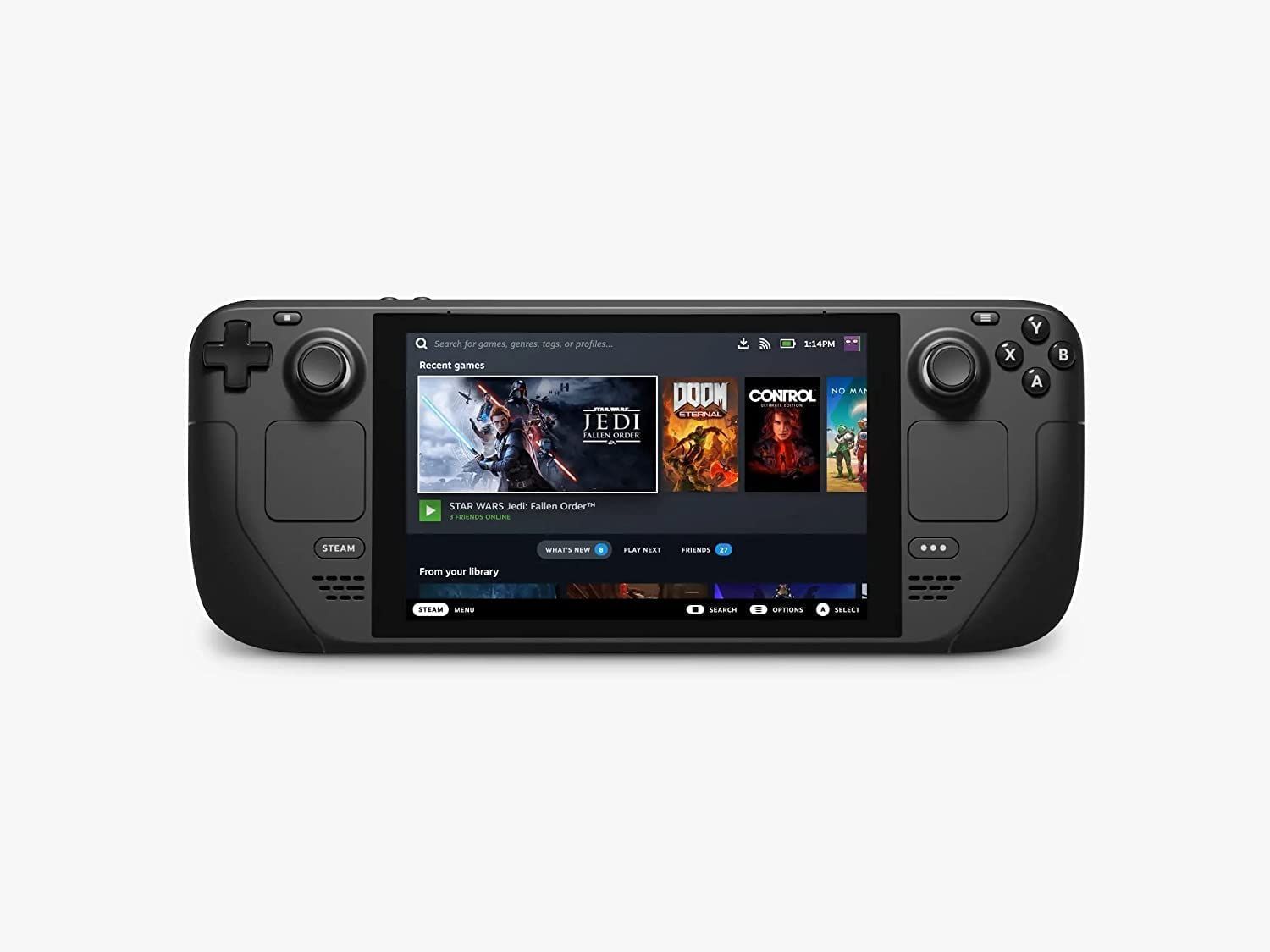
Das Sega Game Gear, ein Handheld-Wunder der 90er Jahre, findet dank EmuDeck jetzt ein neues Zuhause auf dem Steam Deck. Diese Anleitung führt Sie durch die Einrichtung von EmuDeck, die Übertragung Ihrer Game Gear ROMs und die Optimierung der Leistung für ein makelloses Retro-Gaming-Erlebnis. Wir werden auch Decky Loader und Elektrowerkzeuge für verbesserte Kontrolle und Leistung behandeln.

Bevor Sie beginnen: Grundlegende Vorbereitungsarbeiten
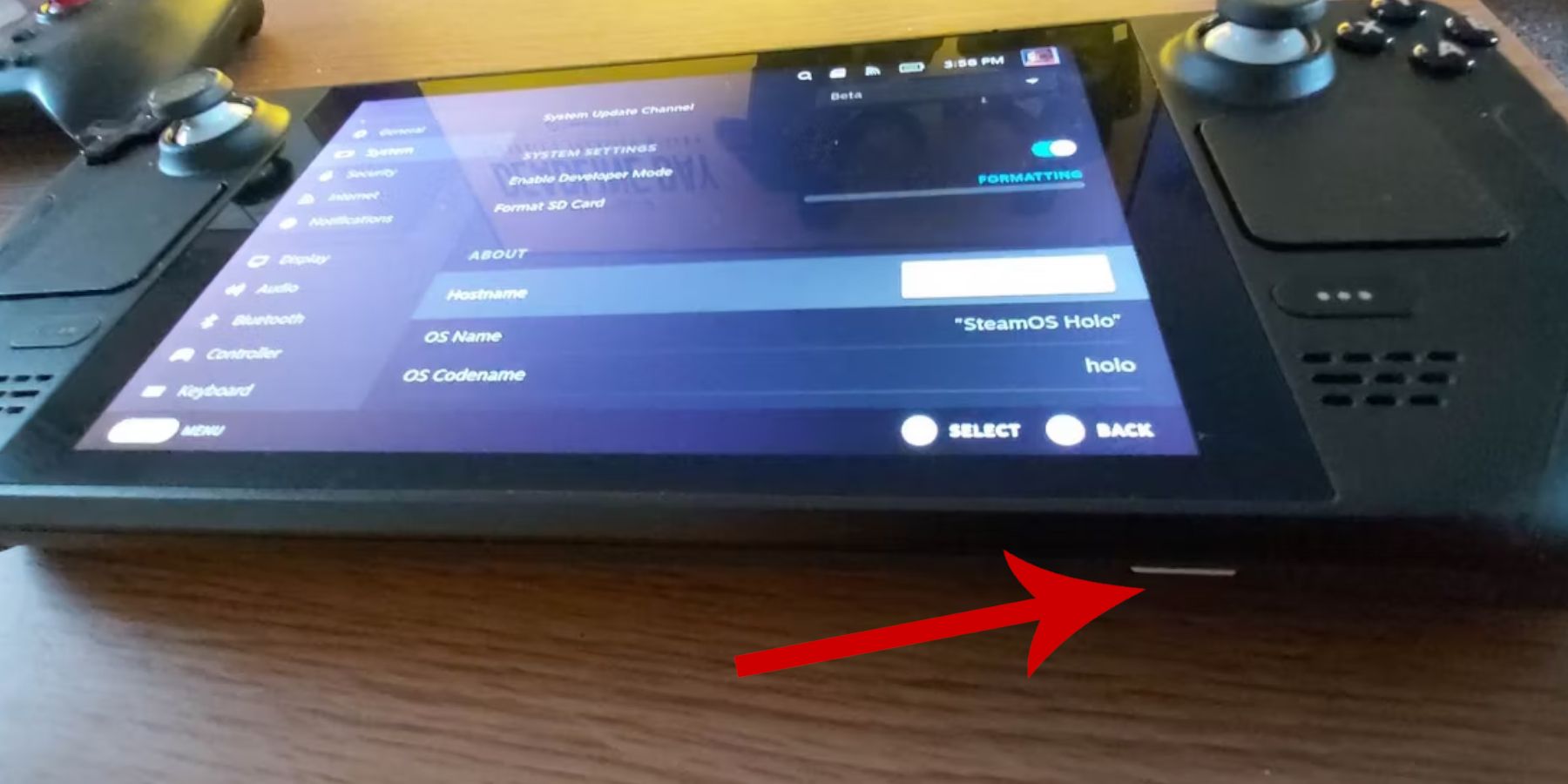
Bevor Sie sich mit der Emulation befassen, stellen Sie sicher, dass Sie die folgenden Schritte ausgeführt haben:

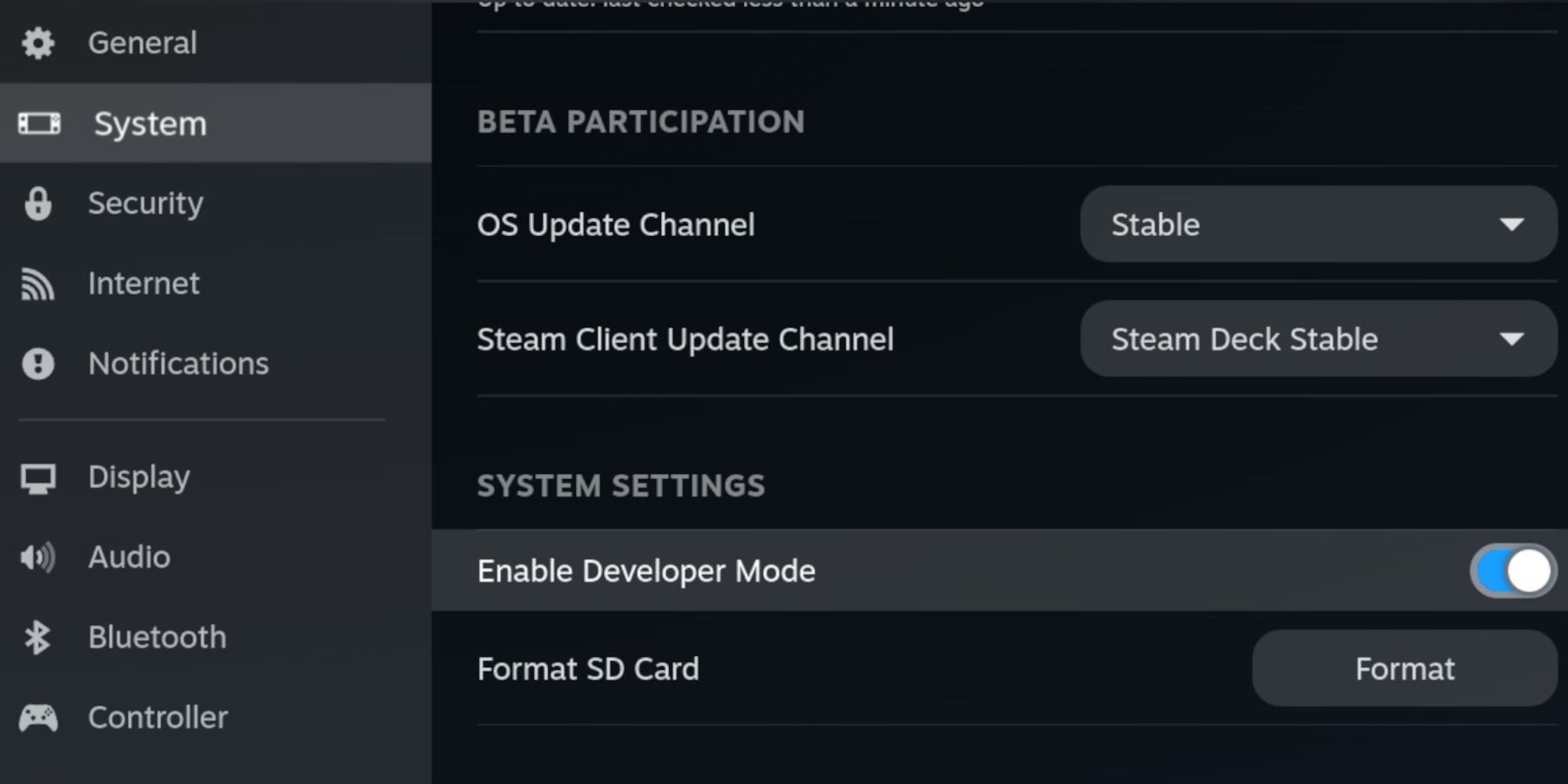
  • Entwicklermodus aktivieren: Navigieren Sie zu Steam > System > Systemeinstellungen > Entwicklermodus aktivieren. Aktivieren Sie dann im Menü „Entwickler“ das CEF-Remote-Debugging. Starten Sie Ihr Steam Deck neu.
  • Besorgen Sie sich Ihre Werkzeuge: Sie benötigen externen Speicher (eine microSD-Karte wird empfohlen) für ROMs und Emulatoren sowie eine Tastatur und eine Maus (optional, aber zur einfacheren Dateiverwaltung dringend empfohlen). Denken Sie daran, Ihre Game Gear ROMs legal zu erwerben.

EmuDeck installieren: Ihr Retro-Gateway
Lassen Sie uns EmuDeck zum Laufen bringen:

  1. Wechseln Sie auf Ihrem Steam Deck in den Desktop-Modus.
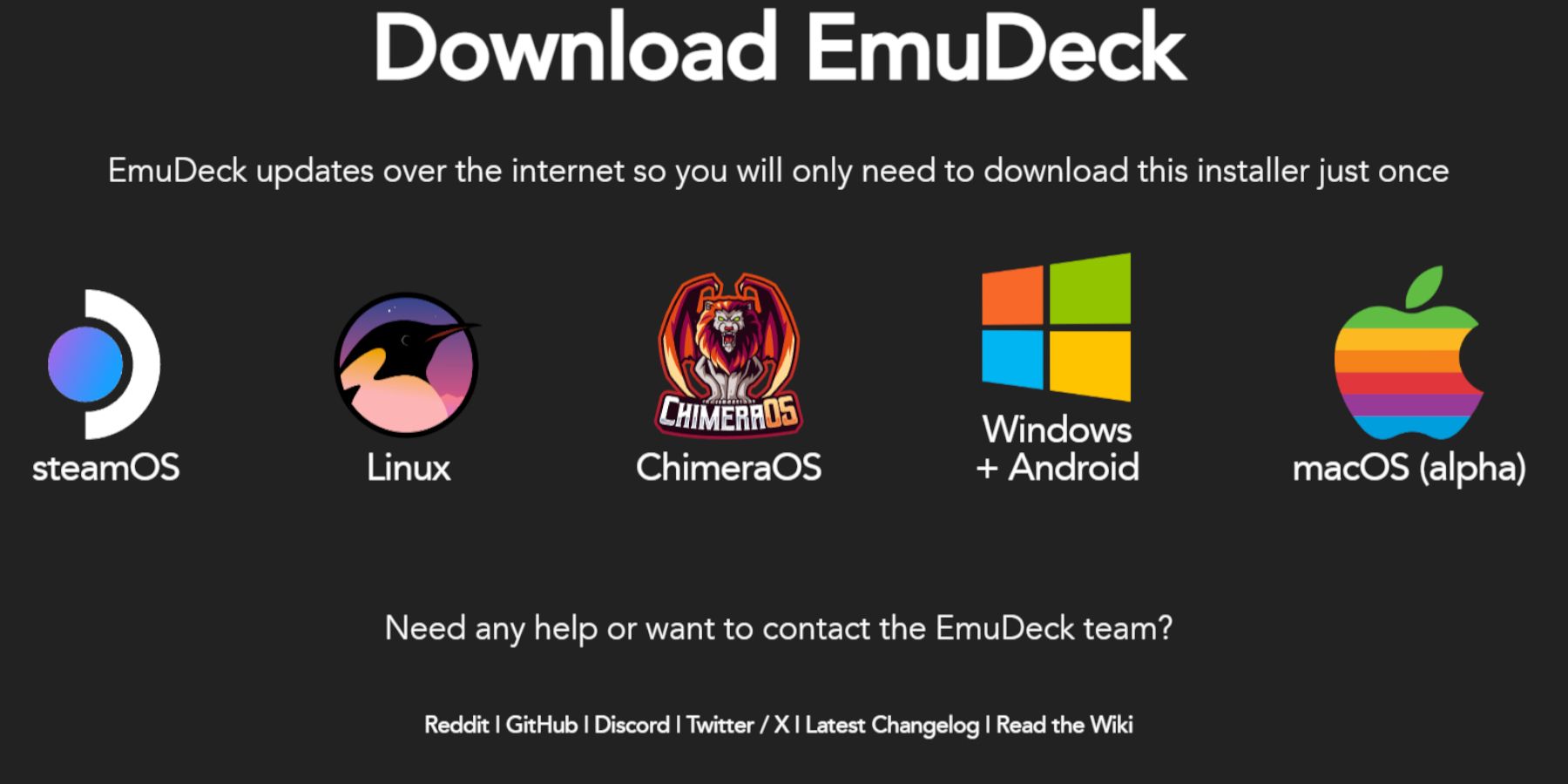
  2. Laden Sie EmuDeck von der offiziellen Website herunter.
  3. Wählen Sie die Steam OS-Version und wählen Sie „Benutzerdefinierte Installation“.
  4. Wählen Sie Ihre SD-Karte als primären Installationsort.
  5. Wählen Sie die gewünschten Emulatoren (RetroArch, Emulation Station, Steam ROM Manager werden empfohlen).
  6. Aktivieren Sie „Auto Save“ und schließen Sie die Installation ab.
  7. Aktivieren Sie in EmuDecks Quick Settings AutoSave, Controller Layout Match, stellen Sie Sega Classic AR auf 4:3 ein und schalten Sie LCD-Handhelds ein.

ROMs übertragen und Ihre Bibliothek mit Steam ROM Manager verwalten
Zeit, Ihre Spiele hinzuzufügen:

  1. Navigieren Sie mit dem Dolphin File Manager im Desktop-Modus zum Ordner Emulation/ROMs/gamegear Ihrer SD-Karte.
  2. Übertragen Sie Ihre Game Gear ROMs in diesen Ordner.
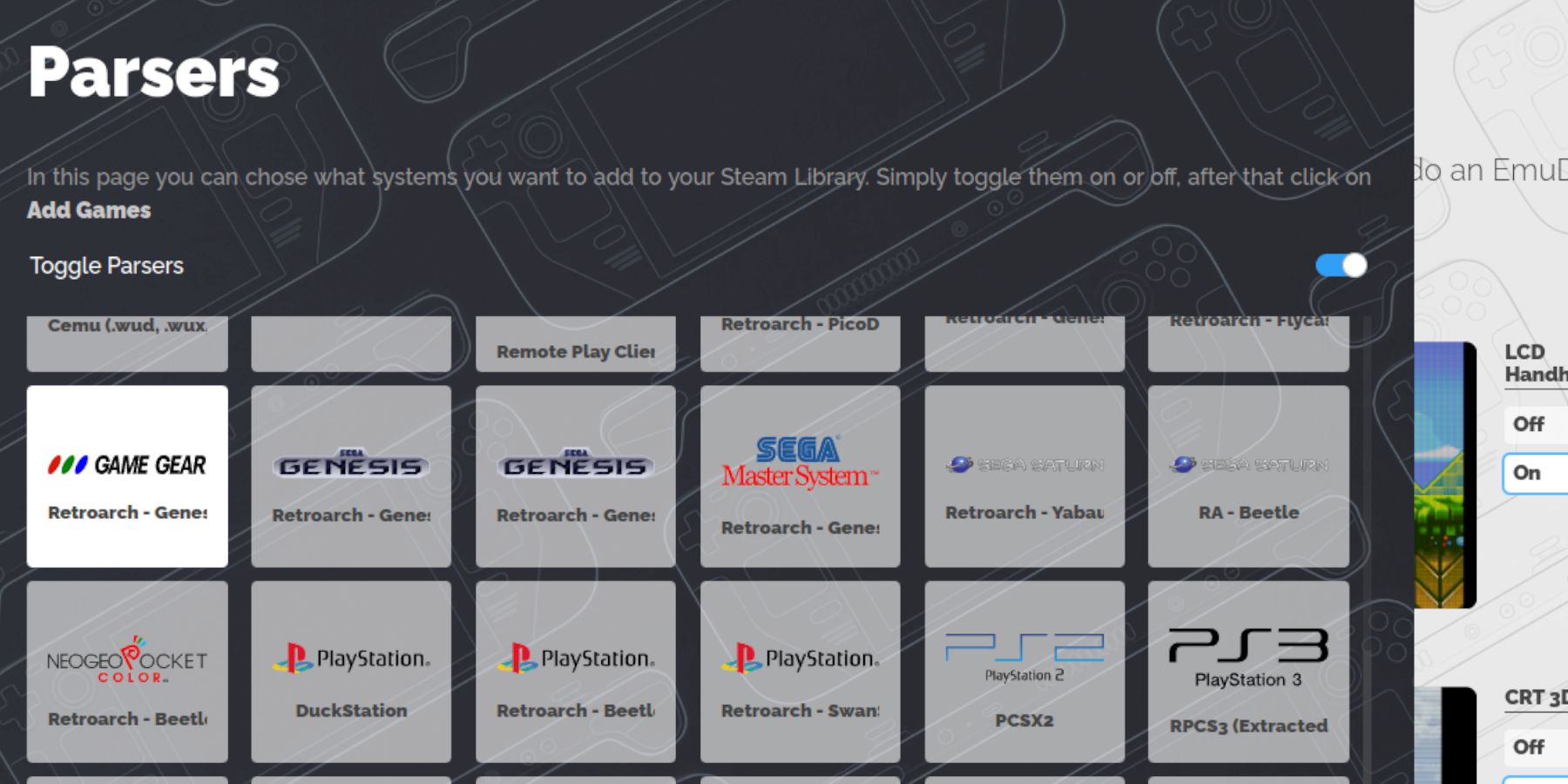
  3. Öffnen Sie EmuDeck und starten Sie Steam ROM Manager.
  4. Folgen Sie den Anweisungen auf dem Bildschirm, wählen Sie den Game Gear-Parser aus und fügen Sie Ihre Spiele hinzu.
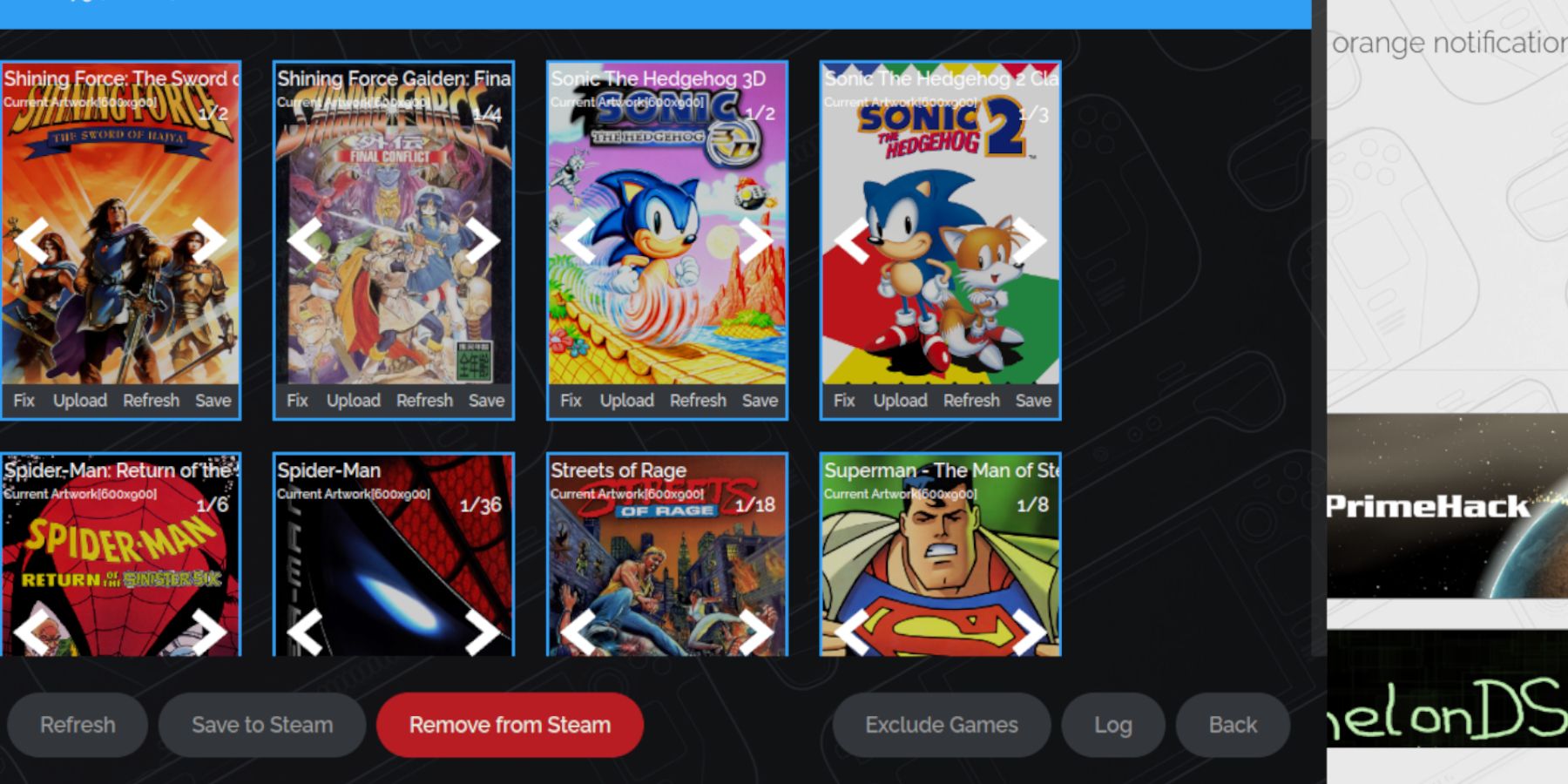
  5. Stellen Sie sicher, dass das Bildmaterial korrekt zugewiesen ist, und speichern Sie es auf Steam.

Fehlerbehebung bei fehlendem Bildmaterial
Wenn Bildmaterial fehlt oder falsch ist:

  • Verwenden Sie die „Fix“-Funktion des Steam ROM Managers, um nach korrekten Grafiken zu suchen und diese herunterzuladen.
  • Laden Sie fehlende Grafiken manuell hoch, indem Sie online suchen, das Bild im Bilderordner Ihres Steam Decks speichern und es dann über den Steam ROM Manager hochladen. Denken Sie daran, alle Zahlen vor Spieletiteln in den ROM-Dateinamen zu entfernen, da dies die Bilderkennung beeinträchtigen kann.

Ihre Spiele spielen und die Leistung optimieren

Starten Sie Ihre Game Gear-Spiele aus der Bibliothek Ihres Steam Decks im Gaming-Modus. So optimieren Sie die Leistung:

  1. Greifen Sie auf das Schnellzugriffsmenü (QAM) zu.
  2. Wählen Sie Leistung.
  3. Aktivieren Sie „Profil pro Spiel verwenden“ und stellen Sie das Frame-Limit auf 60 FPS ein.

Erweiterte Leistung mit Decky Loader und Elektrowerkzeugen
Für noch flüssigeres Gameplay:

  1. Installieren Sie Decky Loader von seiner GitHub-Seite im Desktop-Modus. Starten Sie Ihr Steam Deck neu.
  2. Installieren Sie das Power Tools-Plugin über den Decky Loader Store.
  3. Deaktivieren Sie in Power Tools SMTs, stellen Sie die Anzahl der Threads auf 4 ein, aktivieren Sie die manuelle GPU-Taktsteuerung und erhöhen Sie die GPU-Taktfrequenz auf 1200. Aktivieren Sie Pro Spielprofil, um diese Einstellungen zu speichern.

Decky Loader nach Steam-Deck-Updates warten
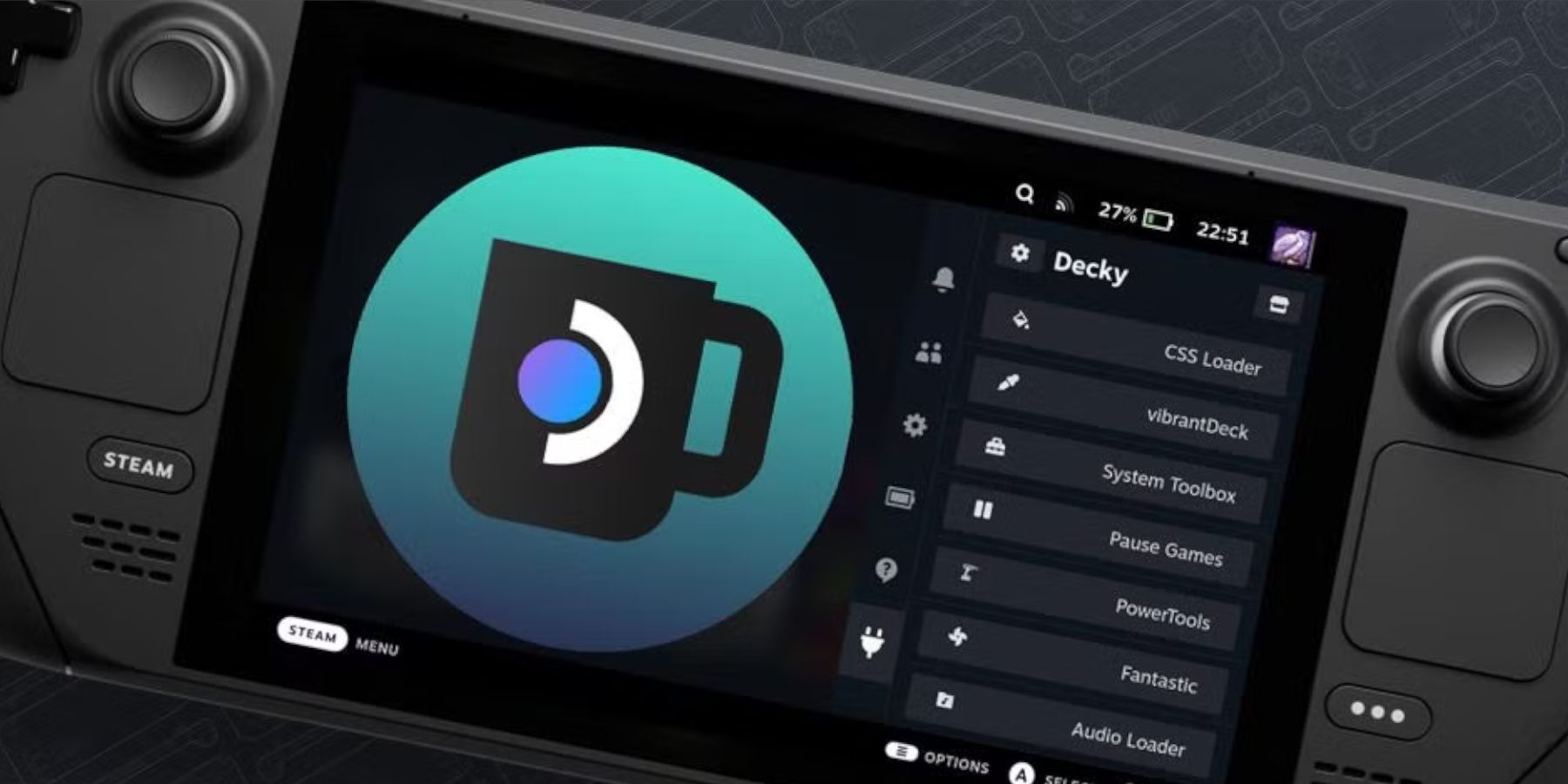
Steam Deck-Updates entfernen möglicherweise Decky Loader. Um es wiederherzustellen:

  1. Wechseln Sie in den Desktop-Modus.
  2. Laden Sie Decky Loader erneut von GitHub herunter.
  3. Führen Sie die heruntergeladene Datei aus (wählen Sie „Ausführen“, nicht „Öffnen“). Sie müssen Ihr Sudo-Passwort eingeben.
  4. Starten Sie Ihr Steam Deck neu.

Mit diesen Schritten sind Sie bereit, Ihre Lieblingstitel von Game Gear auf Ihrem Steam Deck zu genießen!

Neueste Artikel

Mehr
It seems you're referring to a mobile game called Figment Puzzle Game, possibly looking for information about it being free on the Epic Games Store. However, as of now, there is no widely known puzzle game titled Figment Puzzle Game available on the Epic Games Store for mobile. Here are a few clarifications: Epic Games Store Mobile Availability: The Epic Games Store is primarily available on desktop (Windows), and while it does have a mobile app for Android, it does not currently offer a large library of mobile-exclusive games like Figment Puzzle Game. Most games on the Epic Store are PC-focused. Figment – The name "Figment" may be referencing Figment, a whimsical character from Disney's Dreams (a multimedia project), or a game inspired by that character. There have been indie puzzle games with similar themes, but no major title named Figment Puzzle Game is officially listed on Epic Games Store. Free on Epic Games: If a game is free on the Epic Games Store, it’s usually highlighted as such. You can check the store directly at https://www.epicgames.com to search for "Figment" or related puzzle games. 🔍 What You Can Do: Search the Epic Games Store app (on Android or desktop) for "Figment Puzzle Game". Check if it’s a third-party indie game on platforms like Itch.io or Google Play. Confirm the game’s official name—sometimes titles are slightly different. If you meant a different game (e.g., Puzzle Quest, Monument Valley, or The Talos Principle), let me know and I can help find a free alternative on the Epic Store or other platforms. Let me know more details if you’d like help! Lektüre
As of now, there is no official confirmation from Nintendo regarding a game being removed from the Nintendo Switch due to Switch 2 compatibility delays. Reports suggesting such a removal may stem from misinformation, speculation, or confusion surrounding future hardware transitions. Nintendo has not announced any plans to remove existing games from the Nintendo Switch eShop or physical library due to delays in the upcoming Switch 2 (often referred to as the Switch successor or "Switch 2" in media). In fact, Nintendo has consistently emphasized support for its current Switch platform, including continued game releases and online services. That said, it's common for rumors to circulate when new hardware is in development—especially around backward compatibility, game availability, and potential changes to digital storefronts. However, as of the latest updates (early 2024), all major Switch titles remain accessible, and no game has been officially delisted for compatibility reasons. If you’ve seen a specific report about a game being removed, it may be a misunderstanding or a misinterpretation of a different issue—such as a temporary service outage, regional availability changes, or a game being delisted for non-technical reasons (e.g., licensing, publisher decisions). For accurate information, always refer to official Nintendo sources like Nintendo's website or their social media channels. Stay tuned—Nintendo is expected to provide more details about its next-generation console at future events like Nintendo Direct. Lektüre
As of now, August 2025, there are no officially confirmed or publicly released redeem codes for The Tower – Idle Tower Defense that are guaranteed to work. Game developers (including those behind The Tower – Idle Tower Defense) often release temporary redeem codes through official channels like: Twitter/X (@towergameapp) Discord (Official Community Server) Facebook (The Tower Game) In-game events or promotions YouTube creators (trusted partners) ✅ How to Check for Working Codes (August 2025): Visit the official website: https://www.thetowergame.com Join the official Discord: https://discord.gg/towergame – Code drops happen here regularly. Follow on X (Twitter): @towergameapp – They post new codes during events. Check in-game news tab – New codes are sometimes delivered directly in-game. 🔥 Common Code Format (for reference): Codes are typically uppercase letters and numbers, like: WELCOME100 TOWER2025 DISCORDGIVE FREEDROP ⚠️ Note: Always double-check spelling and case. Codes expire quickly and are often limited to 1 use per account. Never enter your account details on third-party websites offering "free codes." 📌 Pro Tip (August 2025): Since The Tower – Idle Tower Defense is regularly updated, new codes appear weekly during seasonal events (e.g., summer festivals, Halloween, New Year). Be sure to: Enable push notifications in the app. Follow the official social media pages. ❌ If a Code Doesn’t Work: It may have expired. It might have reached its redemption limit. It could be region-locked. ✅ Final Advice: As of August 2025, no known active redeem codes are currently circulating publicly. The best way to get new codes is to join the official Discord and follow @towergameapp on X. Would you like me to help you check the latest codes from the official sources (as of mid-August 2025)? Just let me know! 🎮✨ Lektüre
It looks like you're referencing a fun and exciting crossover event between 8 Ball Pool and 8 Ball Pool Crossover, which seems to be a playful or fictional announcement. Let’s break it down and clarify what might be going on — because as of now (June 2024), there is no official crossover event between 8 Ball Pool (the popular mobile game by Miniclip) and any other franchise — especially not "8 Ball Pool Crossover," which sounds like a parody or fan-made concept. Here’s a likely interpretation: 🎯 What’s Actually Happening? "8 Ball Pool Crossover Event Launches" might be a fan-made meme, YouTube video title, or satirical post. It could be a joke referencing how 8 Ball Pool often features characters from other Miniclip games (like Cut the Rope, Stuntman, or Darts) in promotional content or limited-time events. Some users create fake "crossover" hype to mock or celebrate the game’s quirky, cartoonish style — especially when it features characters from totally unrelated games. Why the Confusion? Miniclip (the developer of 8 Ball Pool) has done crossover-style events in the past — for example: 8 Ball Pool teaming up with Minecraft, The Sims, or FIFA in promotional campaigns. Players have seen 8 Ball Pool avatars appear in other Miniclip games, and vice versa. These are not full crossovers, but they give fans the illusion of one. Possible Real Event? As of now, no official "8 Ball Pool Crossover Event" has been announced by Miniclip. If you saw this on social media, it's likely: A meme (e.g., "8 Ball Pool x Spider-Man Crossover: Chaos Ensues"). A fan-made video titled for clickbait. A spoof of how gaming crossovers are overhyped. ✅ TL;DR: 🤯 There is no real "8 Ball Pool Crossover Event" with another game as of now. The phrase is likely a joke, fan creation, or internet meme. 8 Ball Pool does have fun promotional events — but not full crossovers like in Fortnite or Genshin Impact. Stay tuned to official Miniclip or 8 Ball Pool social channels for real updates! If you saw this on TikTok, YouTube, or Twitter — it's probably meant to be humorous. 😄 Let me know if you want help finding real 8 Ball Pool events or creating your own fake crossover story! Lektüre