Steam Deck: Cómo ejecutar juegos de SEGA Master System
Desatara el poder de los juegos retro en su mazo de vapor: una guía completa para el sistema maestro de emudeck y Sega
El SEGA Master System, una consola clásica de 8 bits, cuenta con una biblioteca de juegos fantásticos, que incluyen versiones y títulos únicos que no se encuentran en otras plataformas. Esta guía lo guía a través de la configuración de Emudeck en su mazo de vapor para jugar estas gemas retro.
Antes de comenzar:
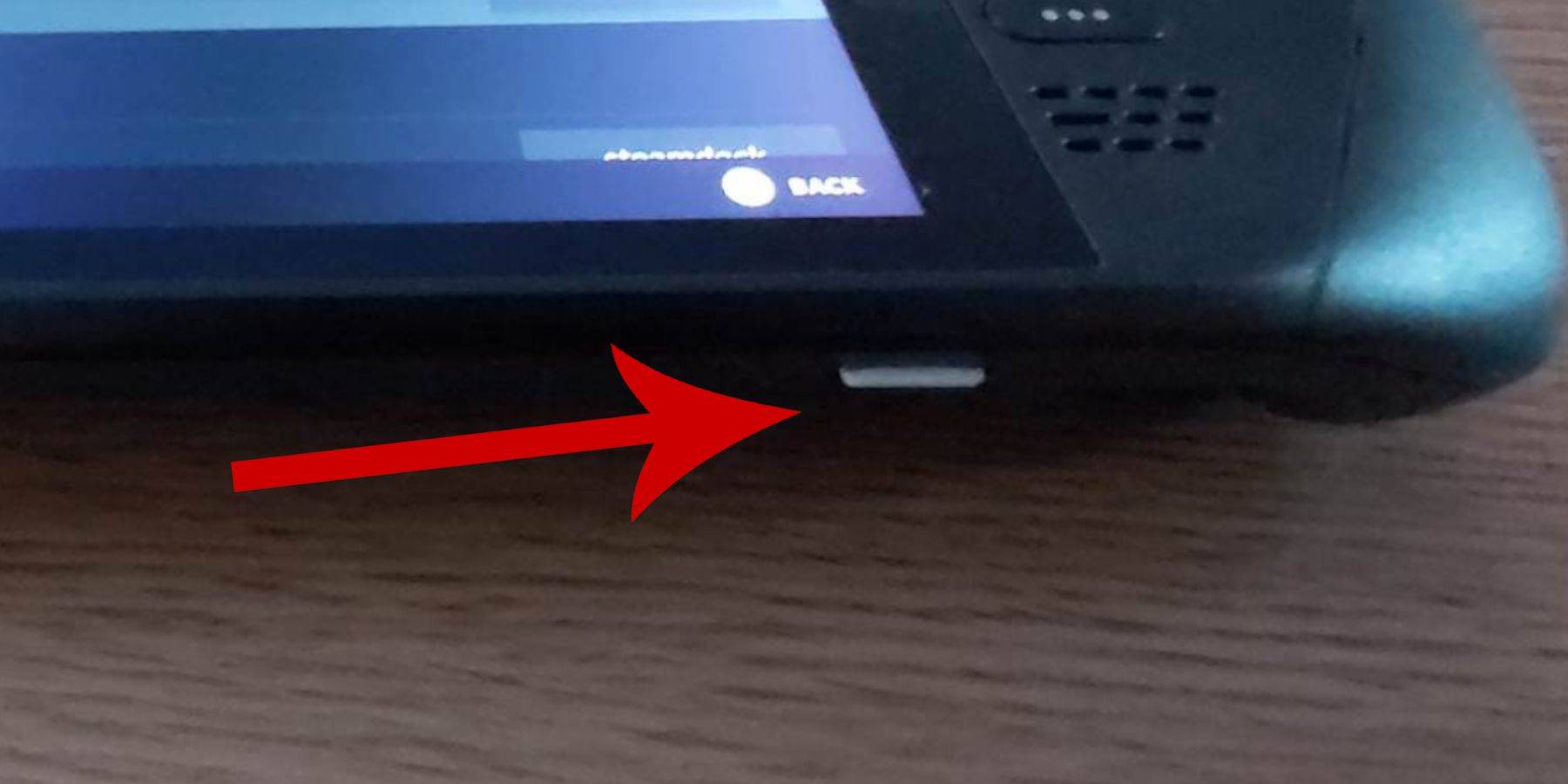
- Autorización: Asegúrese de que su cubierta de vapor esté completamente cargada o conectada a la alimentación.
- Almacenamiento: Se necesita una tarjeta microSD de alta velocidad (recomendada) o HDD externo. Tenga en cuenta que un HDD externo reduce la portabilidad.
- Periféricos: Un teclado y un mouse son muy recomendados para una navegación más fácil. Si no está disponible, use el teclado en pantalla (botones Steam + X).
Habilitar el modo de desarrollador:
Habilitar el modo de desarrollador es crucial para la operación de emulador suave.
- Acceda al menú de Steam.
- Navegue al sistema> Configuración del sistema.
- Habilitar el modo de desarrollador.
- Acceda al menú del desarrollador (parte inferior del panel de acceso).
- Bajo misceláneos, habilite la depuración remota de CEF. IMPORTANTE: Recuerde verificar esto después de las actualizaciones de la cubierta de vapor, ya que puede deshabilitarse.
- Reinicie su cubierta de vapor.
Instalación de Emudeck en modo de escritorio:
- Apague y cambie al modo de escritorio.
- Descargue Emudeck usando un navegador (Chrome o Firefox).
- Elija su versión de Steamos y ejecute el instalador.
- Seleccione la instalación personalizada.
- Seleccione su tarjeta SD (se renombrará "Primary").
- Elija sus emuladores deseados (al menos retroarch para Sega Master System). Seleccione Steam ROM Manager para facilitar la integración de la biblioteca. Considere habilitar "Configurar CRT Shader para juegos 3D clásicos" para una estética retro.
- Completa la instalación.
Transferir ROM:
- Abra el administrador de archivos Dolphin.
- Navegue a dispositivos extraíbles> Primary> Emulación> ROMS> Mastersystem.
- Copie sus ROM SEGA Master System (
.smsarchivos) en esta carpeta. Ignorar el archivo 'medios'.
Agregar juegos a tu biblioteca de Steam:
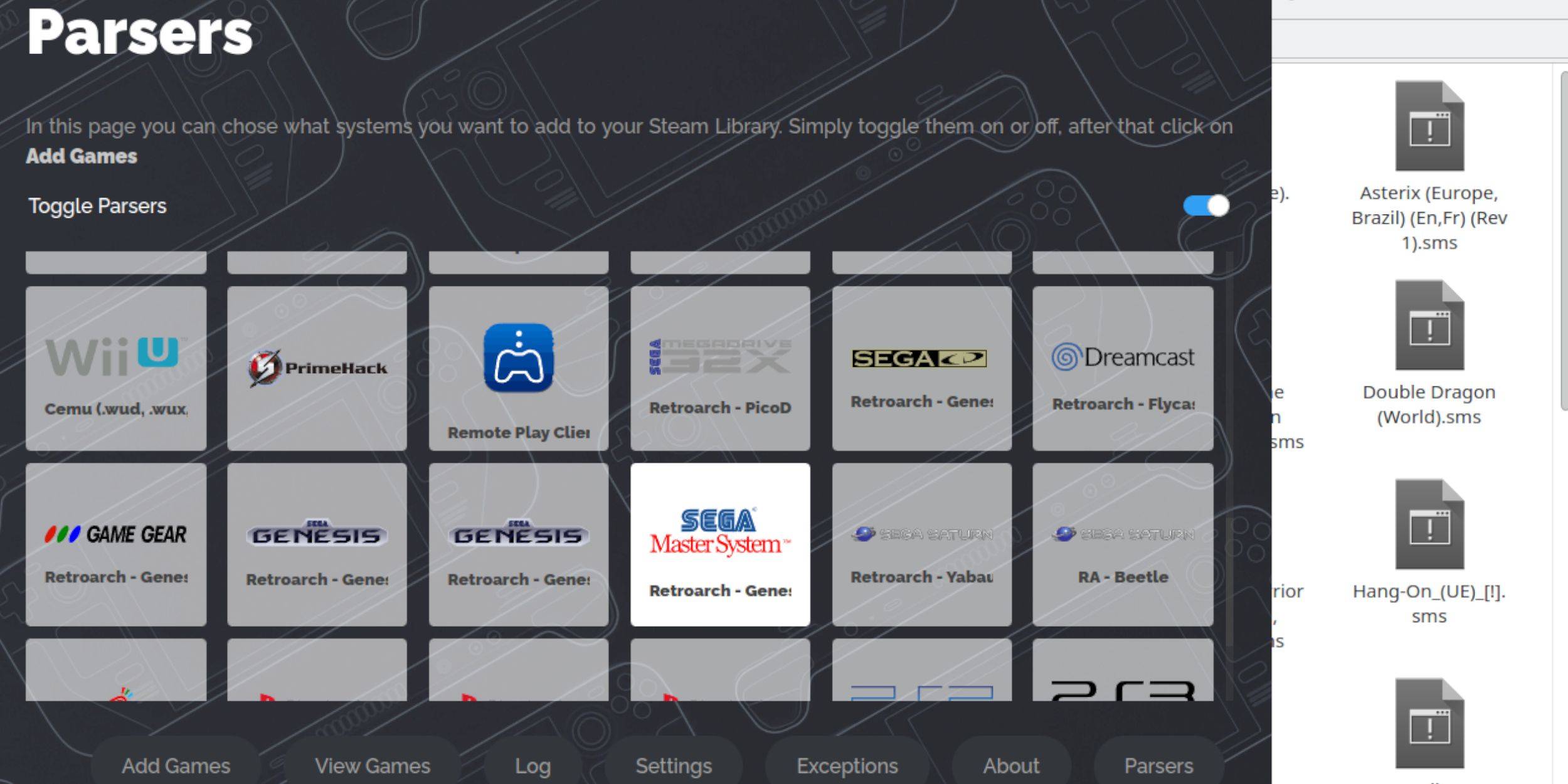
- Abra Emudeck en modo de escritorio.
- Iniciar el administrador de ROM de Steam.
- Seleccione "SEGA Master System".
- Haga clic en "Agregar juegos" y luego "analizar".
- Verifique la pantalla de juego y obras de arte.
- Haga clic en "Guardar para vapor".
Arreglar o cargar obras de arte faltantes:
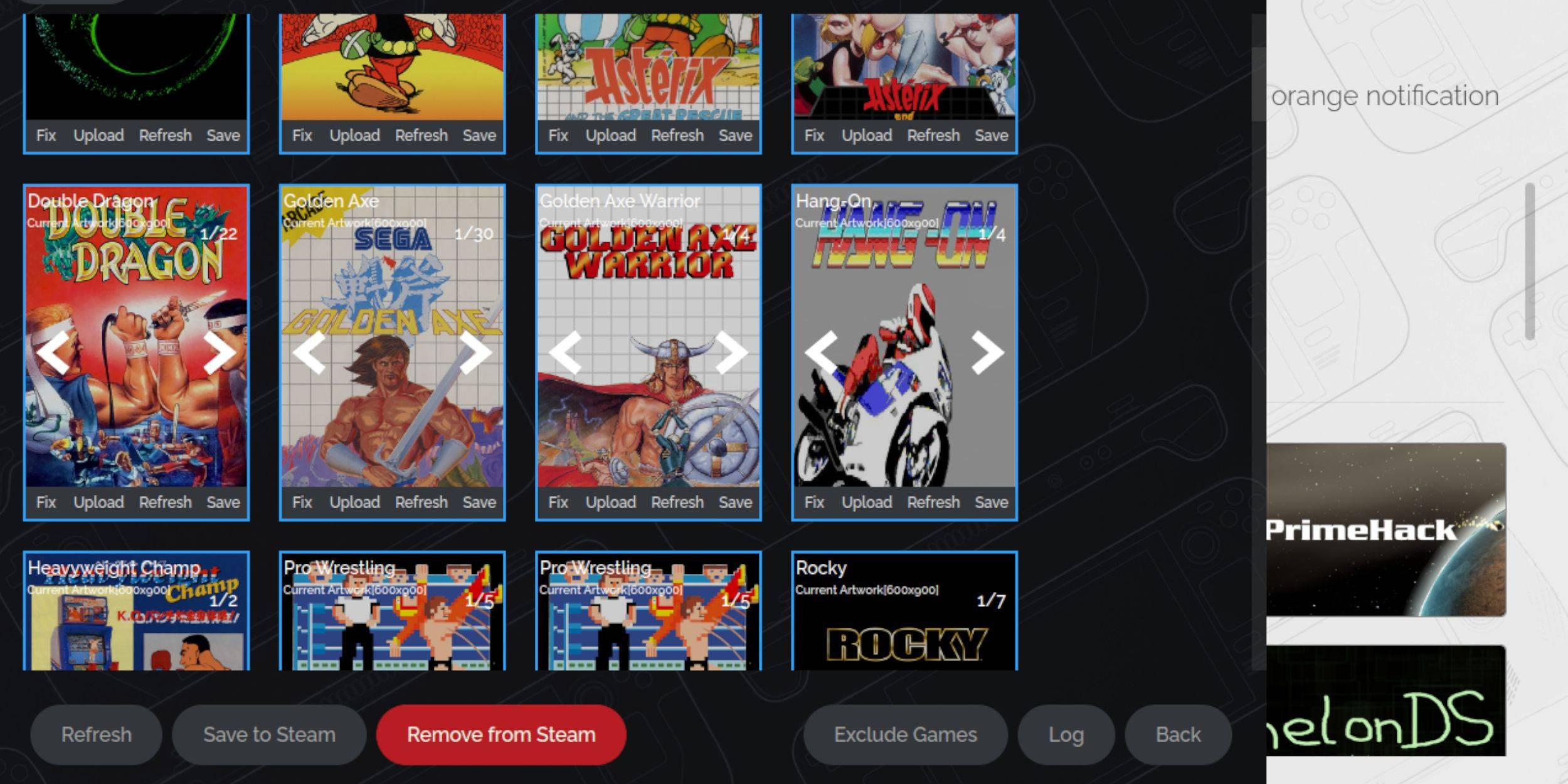
- FIJO: Haga clic en "Arreglar" en una cubierta faltante. Steam ROM Manager intentará encontrar obras de arte automáticamente. Si no se encuentra, busque manualmente y guarde.
- Carga: Guardar obras de arte en la carpeta de imágenes de la plataforma de vapor. En Steam ROM Manager, haga clic en "Cargar", seleccione la imagen y guarde.
Jugando tus juegos:
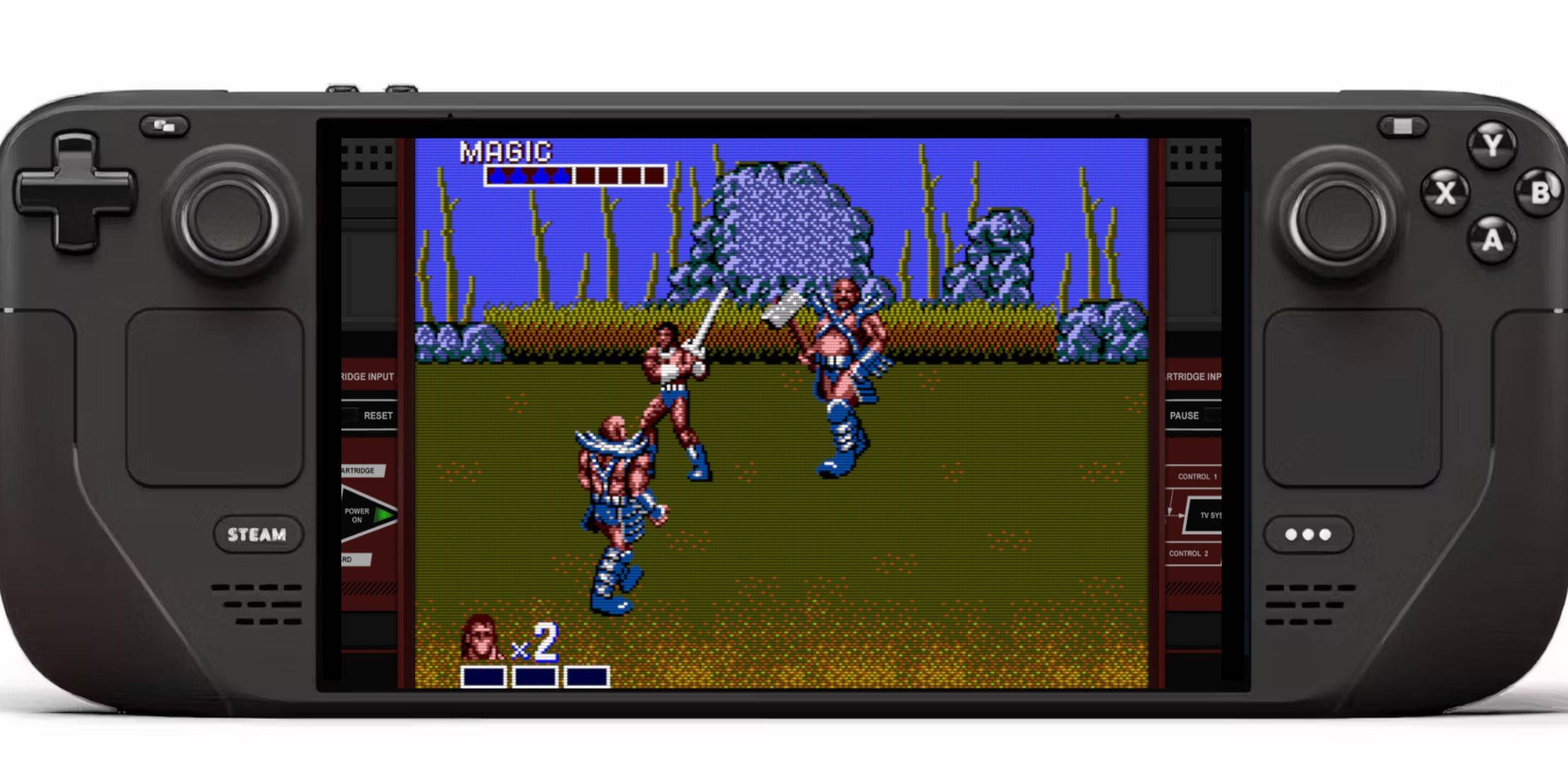
- Cambiar al modo de juego.
- Abra su biblioteca de vapor.
- Navegue a su colección Sega Master System.
- ¡Seleccione un juego y juegue!
Mejoras de rendimiento:
Para un juego más suave:
- Abra un juego y acceda al menú de acceso rápido (QAM).
- Vaya a la actuación.
- Habilite "Use el perfil del juego".
- Establezca el límite de marco a 60 fps.
- Habilite el sombreado de media tasa.
Instalación del cargador de hojalete y herramientas eléctricas:
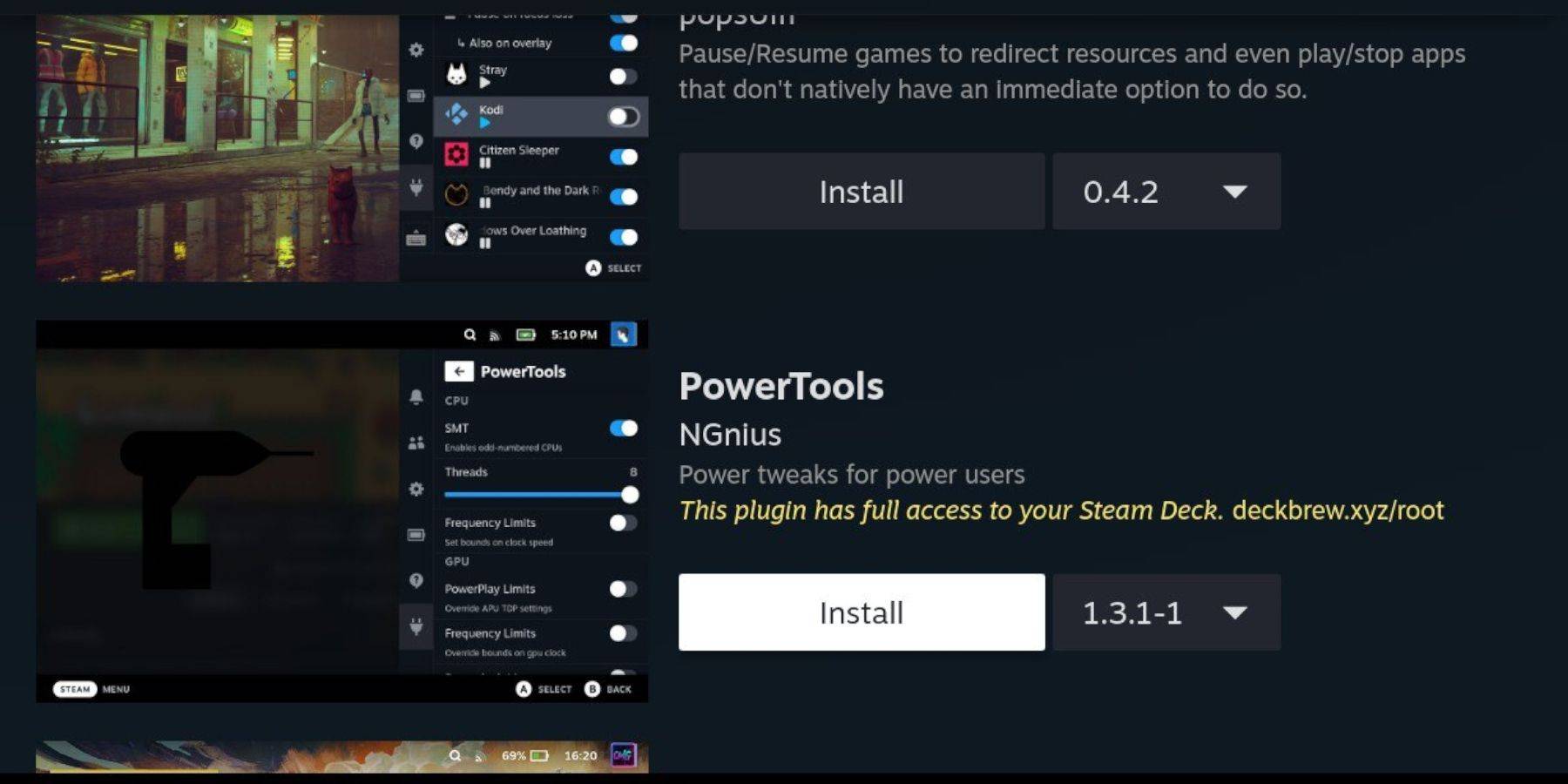
Emudeck recomienda un cargador de hojalete y herramientas eléctricas para un control mejorado. Siga las instrucciones dentro de la Guía para la instalación. También se detallan la configuración de herramientas eléctricas (deshabilitar SMTS, ajustar los hilos, el control del reloj GPU).
Fijar cargador de hojalete después de las actualizaciones:
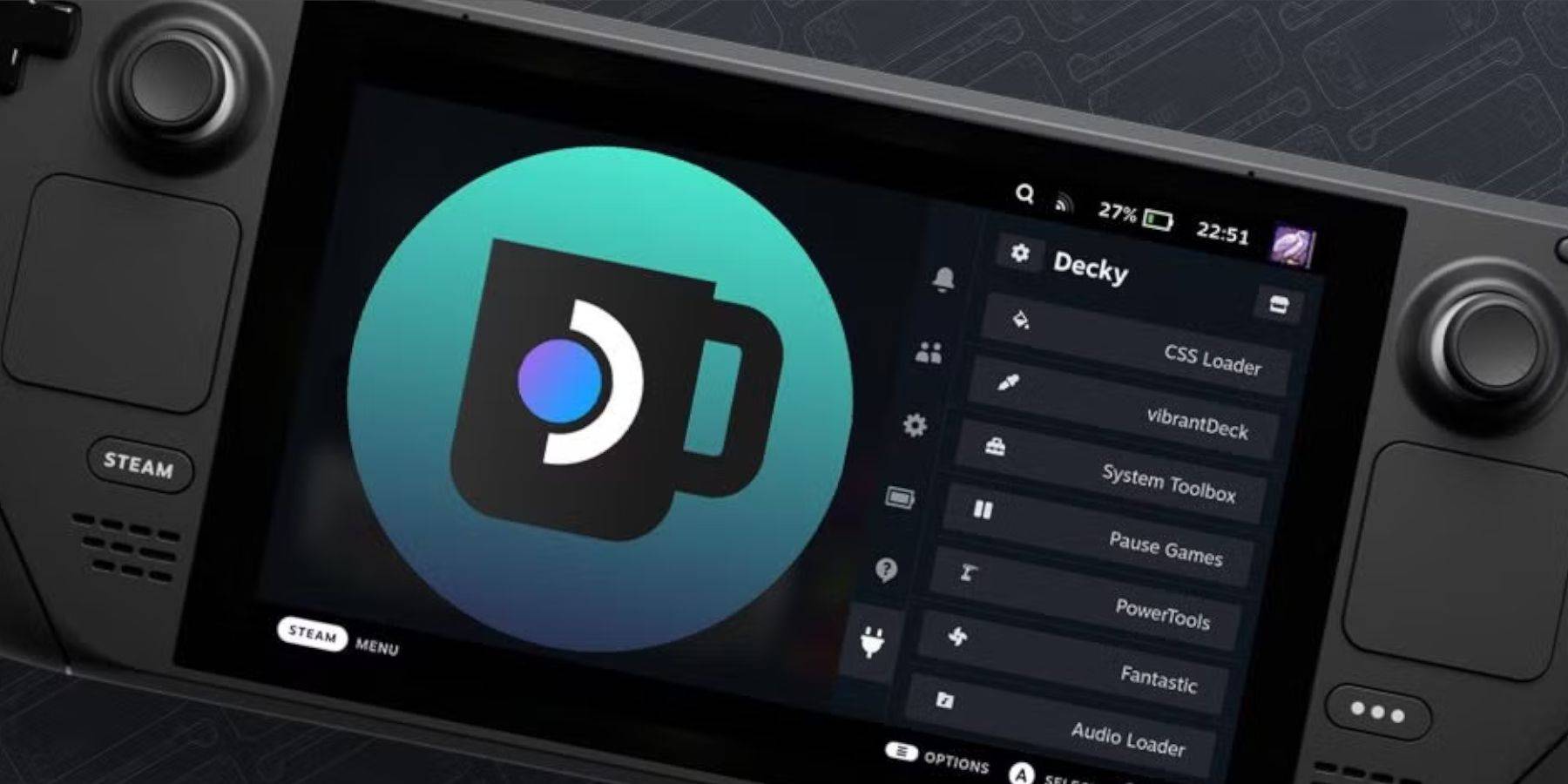
Las actualizaciones de la plataforma de vapor pueden afectar el cargador de hoja de hoja de hoja de hoja de hojalata. Reinstale el cargador de hojalabardero de GitHub, utilizando la opción "Ejecutar" y su pseudo-password (cree uno si es necesario).
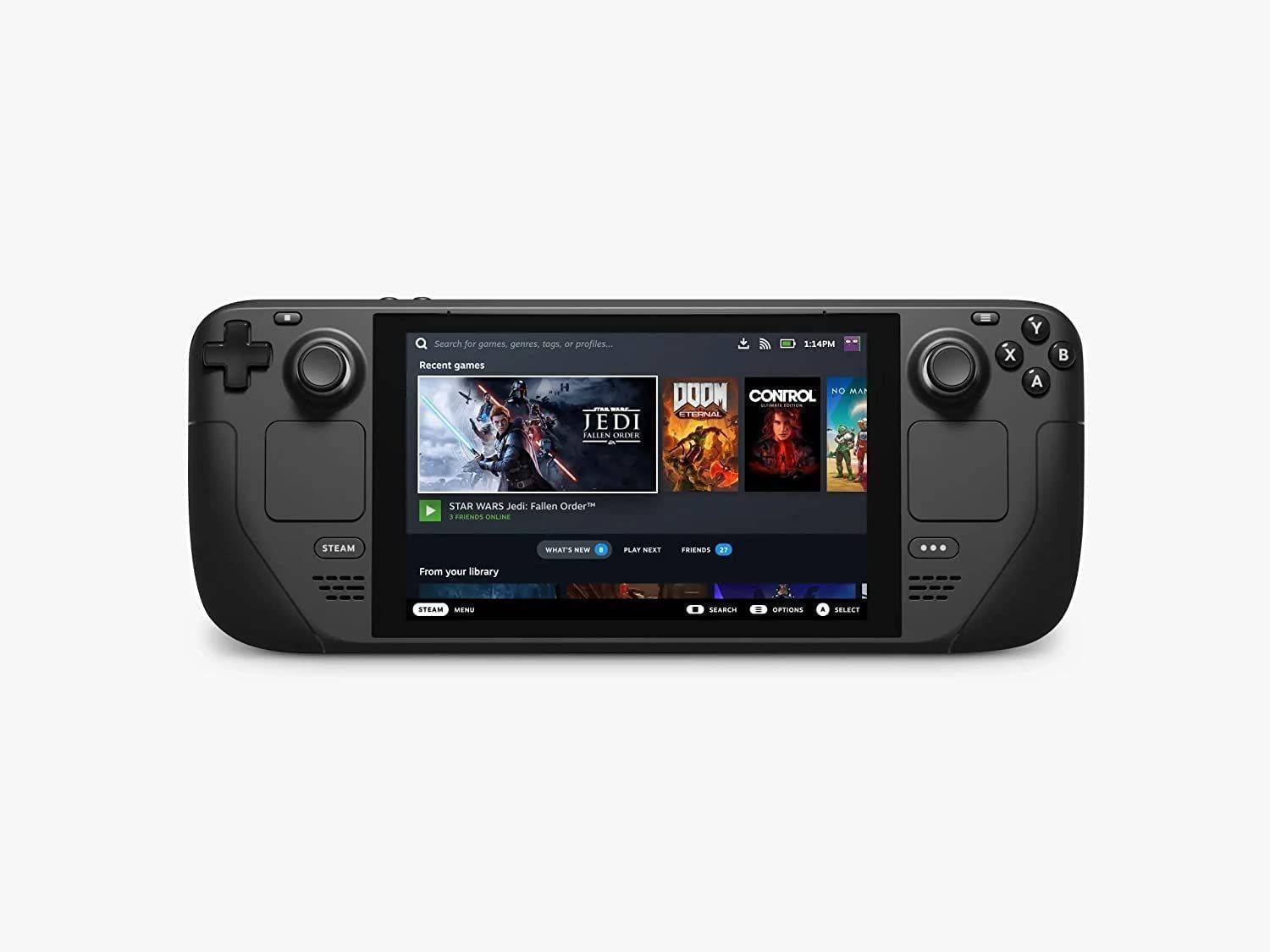
¡Disfruta de tu experiencia de juego retro en la cubierta de vapor!
Últimos artículos
Juegos de tendencia
![1xBet [Updated]](https://imgs.yx260.com/uploads/76/1719623227667f5e3be7616.jpg)







Noticias principales

Últimos juegos