PlayStation VR2からPC接続ガイド:ステップバイステップ
Gaming PCでPlayStation VR2ヘッドセットを使用してSteamVRゲームの広大な世界に没頭したい場合、オプションは大幅に拡大しています。 Sonyが昨年秋に60ドルのアダプターをリリースしたことで、PS VR2の所有者がヘッドセットを最新のゲームPCに接続するドアが開かれました。これらのPCが必要な最小仕様を満たしていれば。ただし、セットアッププロセスは、単にアダプターでプラグインするほど簡単ではありません。プラグアンドプレイマーケティングにもかかわらず、いくつかの重要な機能が欠落している可能性があり、PCの構成に基づいて追加のセットアップが必要です。
アダプターでPCに接続する方法
セットアッププロセスを開始する前に、必要なすべてのコンポーネントがあることを確認してください。 PS VR2は、アダプターを介して接続されている場合、ほとんどのSteamVRゲームと互換性があります。 PCにはBluetooth 4.0接続、予備のDisplayport 1.4ケーブル、AC電源アウトレットへのアクセス、SteamにインストールされたPlayStation VR2とSteamVRアプリの両方があることを確認する必要があります。 PS VR2のセンスコントローラーはUSB-Cを介して充電する必要があるため、2つのUSB-Cポートとケーブルが必要になるか、より便利なソリューションのためにSonyの50ドルのセンスコントローラー充電ステーションを購入することを検討します。
必要なもの
在庫に戻ります
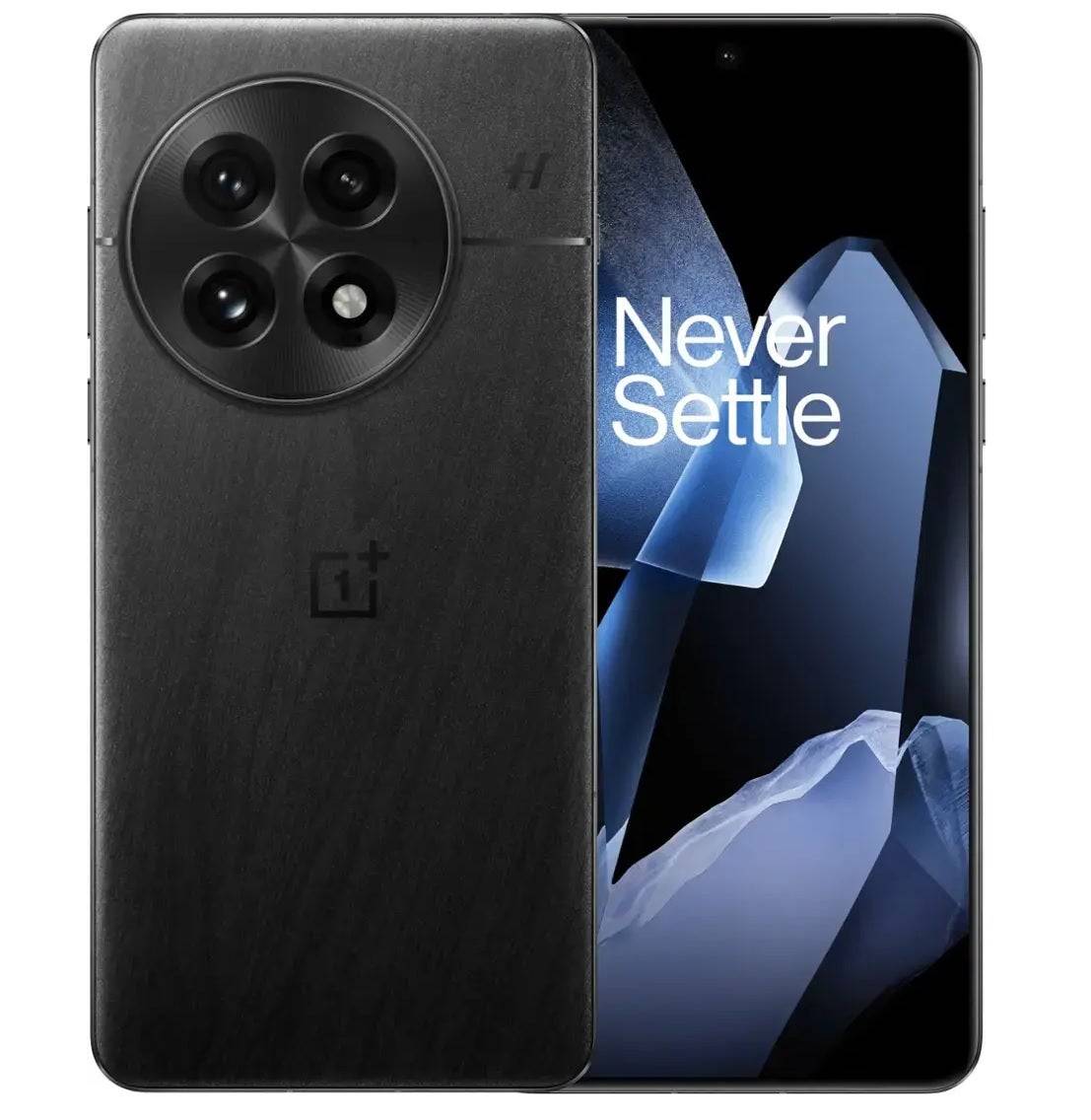
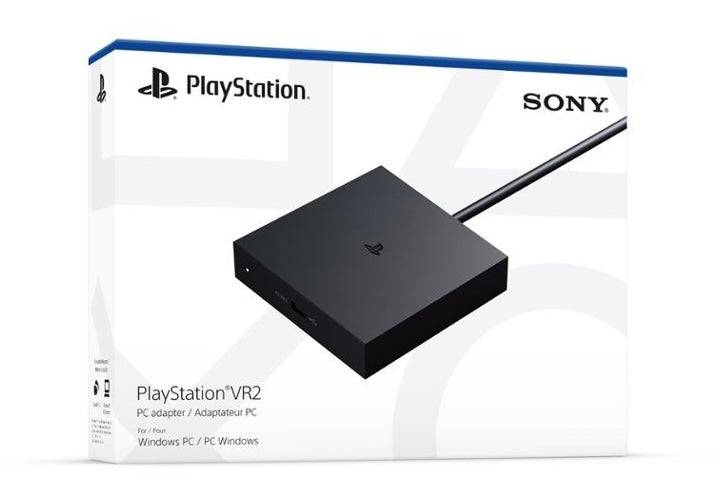
PlayStation VR2 PCアダプター
潜る前に、ゲームPCがPlayStation VR2ヘッドセットと互換性があるかどうかを確認してください。 Sonyの公式PS VR2 PCアダプター準備ページにアクセスして、システムの互換性を確認してください。すべてがチェックアウトした場合、必要なものがあります:
- PlayStation VR2ヘッドセット
- PlayStation VR2 PCアダプター(ACアダプターと男性USB 3.0タイプAケーブルを含む)
- displayport1.4ケーブル(個別に販売)
- PCの無料のUSB 3.0 Type-Aポート(Sonyは、拡張ケーブルまたは外部ハブを使用することに対してアドバイスしますが、駆動された外部ハブはテストでうまく機能しました)
- PCのBluetooth4.0機能(内蔵または外部Bluetoothアダプター経由)
- SteamとSteamVRはPCにインストールされています
- Steam内にインストールされたPlayStation VR2アプリ
接続方法:ステップバイステップの手順
必要なコンポーネントがすべて揃ったら、次の手順に従ってPS VR2をPCに接続します。
- SteamVRとPlayStation VR2アプリをインストールします。
- まだいない場合は、 Steam Windowsクライアントをダウンロードしてインストールしてください。
- 蒸気を開いて、 SteamVRアプリをインストールします。
- PlayStation VR2アプリをダウンロードしてインストールします。
- PCのBluetoothをセットアップし、センスコントローラーをペアリングします。
- PCのスタートメニューから、[設定]> [Bluetooth&Devices]> [Bluetooth]を「オン」に切り替えます。
- 各コントローラーで、PlayStationボタンを押し続け、下部の白色光が点滅し始めるまでボタンを作成します。
- PCで、Bluetooth&Devicesページの[デバイス]の右側にある[デバイスの追加]ボタンをクリックします。
- メニューから「Bluetooth」を選択し、PlayStation VR2 Sense Controller(L)および(R)を検索します。両方のデバイスを接続します。
- PCに組み込みのBluetooth 4.0がない場合は、ASUS BT500のような互換性のあるアダプターを使用します。
- 組み込みのBluetoothラジオと一緒に外部アダプターを使用する場合は、デバイスマネージャーを介して内部Bluetoothドライバーを無効にします。
- アダプターをセットアップして、PCに接続します。
- PS VR2アダプターを、PCの未使用のUSB 3.0 Type-Aポートに差し込みます。
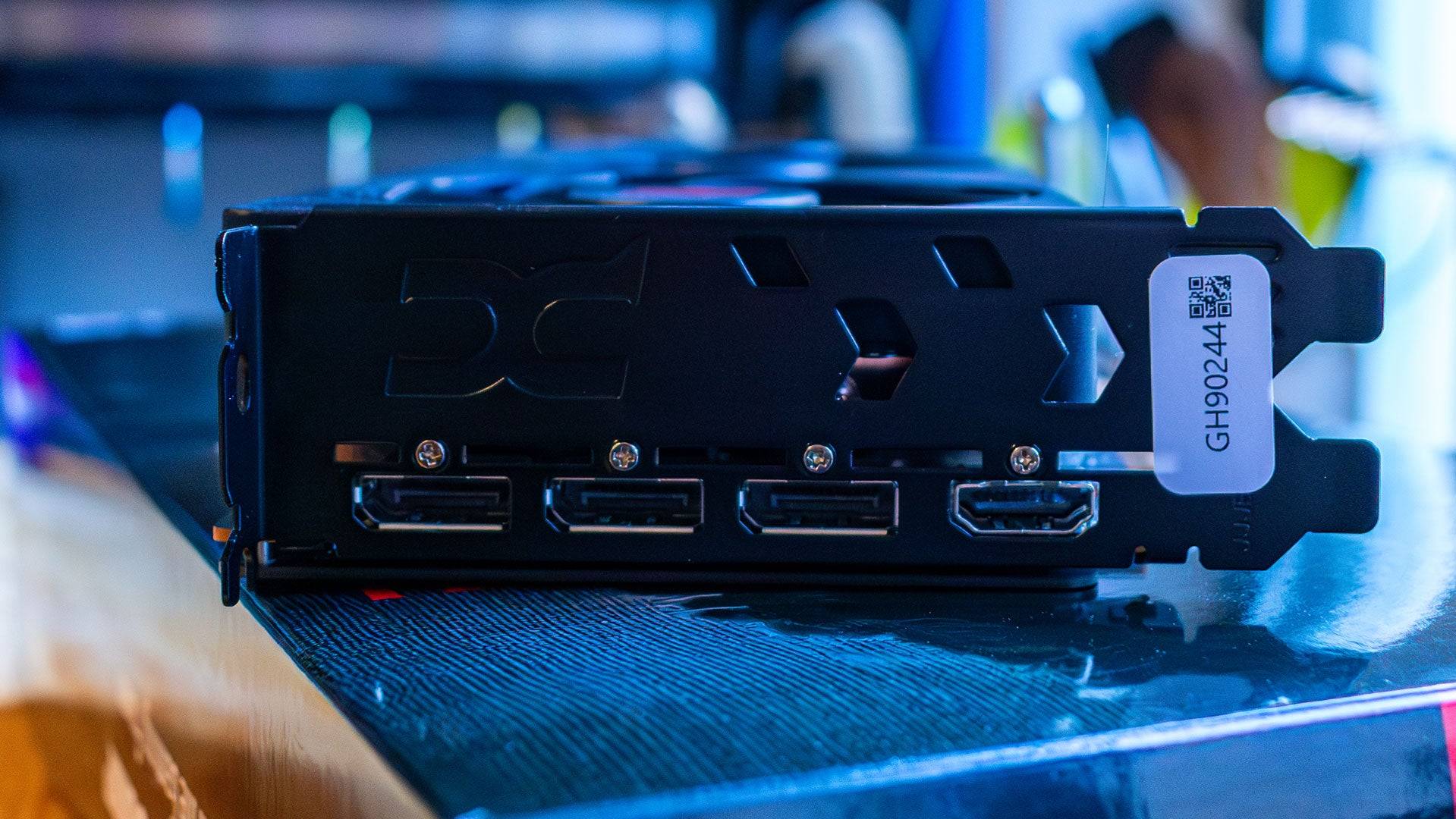
- DisplayPort 1.4ケーブルを使用して、AdapterをGPUの無料DisplayPortスロットに接続します。
- AC電源アダプターをコネクタのPS VR2アダプターのDCに接続し、電気コンセントに接続します。
- 電源を入れたら、アダプターのステータスインジケータは無地に変わります。
- Adapterの前面にあるUSB-Cポートを介して、PlayStation VR2をPCアダプターに接続します。
- ハードウェアアクセラレーションのGPUスケジューリング(オプション)をオフにします。
- 40シリーズのNVIDIA RTXカードのような新しいGPUを使用する場合、安定したVRゲームプレイのハードウェアアクセラレーションGPUスケジューリングを無効にします。
- [設定]> [システム]> [表示]>グラフィックスに移動し、[デフォルトのグラフィック設定]をクリックし、「ハードウェアアクセラレーションのGPUスケジューリング」スライダーをオフにします。
- PCを再起動します。
- PlayStation VR2アプリとSteamVRを起動します。
- 中央のボタンを押し続けることにより、PlayStation VR2ヘッドセットをブートアップします。
- SteamVRをオンにして、デフォルトのOpenXRランタイムとして設定します。
- PlayStation VR2アプリを開いて、Sense Controllersのファームウェアを更新し、プレイエリアや好みを含むPS VR2ヘッドセットをセットアップします。
- 画面およびヘッドセットの指示に従って、IPD、表示距離を設定し、ヘッドセットのフィットを調整します。
- セットアップが完了したら、SteamVRゲームをプレイしてください!
アダプターなしでPCに接続できますか?
現在、アダプターなしでPS VR2をPCに接続することは公式にはサポートされていません。ただし、一部のユーザーは、USB-CポートとVirtuallinkテクノロジーを備えた2018年頃から特定のGPUを使用した回避策を見つけました。 VRへのRoadによると、これらのセットアップは、PCアダプターの必要性をバイパスして、PlayStation VR2アプリをインストールしてPS VR2に直接接続できます。ただし、この方法は普遍的にサポートされておらず、すべてのユーザーでは機能しない場合があります。
最新記事
![1xBet [Updated]](https://imgs.yx260.com/uploads/76/1719623227667f5e3be7616.jpg)